WhatsApp Channel Configuration
Configure your LiveTok AI Agent to engage customers on WhatsApp, the world’s most popular messaging platform with over 2 billion users.
Overview
WhatsApp offers the highest engagement rate of any messaging channel, with a 98% open rate compared to 20% for email. Your customers are already using WhatsApp daily, making it the perfect channel for business communication.
Prerequisites
Before configuring WhatsApp, ensure you have:
- An active LiveTok account
- A dedicated phone number for WhatsApp Business
- A Facebook Business Manager account (or ability to create one)
- Business verification documents (may be required by Meta)
Initial Setup
Step 1: Access Channel Settings
- Log in to your LiveTok dashboard
- Navigate to Channels in the sidebar
- Click Add Channel or Configure if already added
- Select WhatsApp
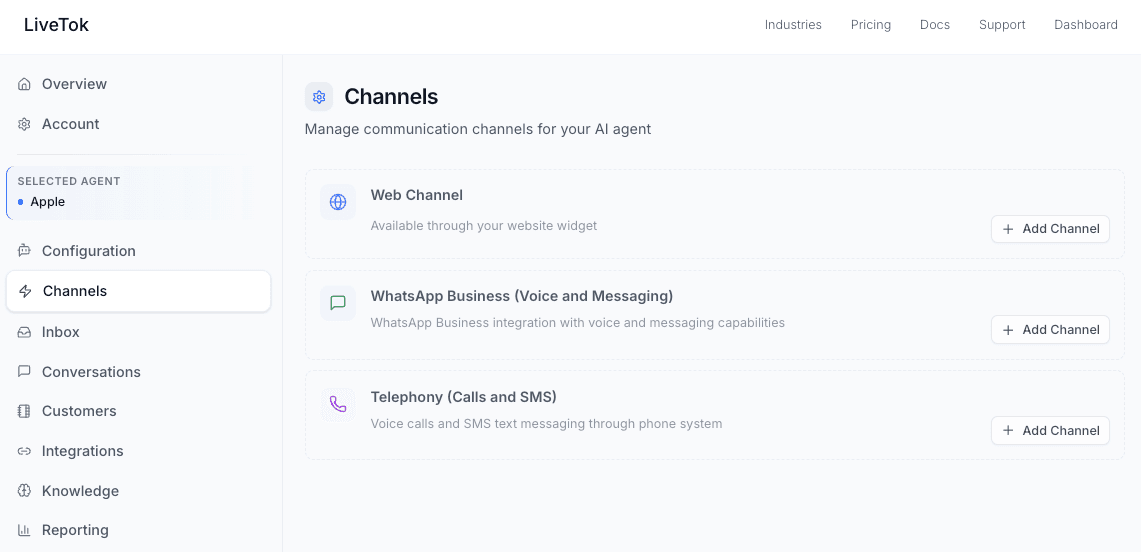
[Screenshot placeholder: Channel selection screen]
Step 2: Connect WhatsApp Business Account
Choose your connection method:
Option A: Use Existing WhatsApp Business Account
- Click Connect Existing Account
- Log in with Facebook Business Manager credentials
- Select your WhatsApp Business Account
- Choose the phone number to connect
- Authorize LiveTok access
- Complete the connection
Option B: Create New WhatsApp Business Account
- Click Create New Account
- Provide business information:
- Business name
- Business category
- Business description
- Phone number
- Business address
- Verify phone number via SMS
- Complete Meta Business verification
- Wait for approval (typically 24-48 hours)
[Screenshot placeholder: WhatsApp account connection]
Step 3: Verify Phone Number
- Enter your dedicated phone number
- Choose verification method:
- SMS verification
- Voice call verification
- Enter the 6-digit code received
- Confirm verification
Important: Once verified, this number cannot be used with regular WhatsApp.
Agent Configuration
Basic Settings
Configure your AI Agent’s behavior on WhatsApp:
Agent Identity
Agent Name: Alex
Business Name: Your Business Name
Profile Picture: [Upload your brand logo]
```text
**[Screenshot placeholder: Agent identity settings]**
#### Greeting Message
Set the first message customers receive:
**Example Greeting:**
```text
Hi! 👋 I'm Alex from [Your Business].
I'm here to help you 24/7 with:
• Booking appointments
• Product questions
• Order status
• General inquiries
How can I assist you today?
```text
**Best Practices:**
- Keep it concise (2-3 short sentences)
- List key capabilities
- Use emojis sparingly for visual appeal
- Include clear call-to-action
#### Business Hours
Configure when your agent is active:
- **24/7 Mode** - Always available (recommended)
- **Business Hours** - Active during specific times
- **Custom Schedule** - Different hours per day
**Out-of-Hours Message:**
```text
Thanks for reaching out! Our team is currently offline.
We're available Monday-Friday, 9 AM - 6 PM EST.
I can still help you with:
• Booking appointments for tomorrow
• Answering common questions
• Taking a message for our team
What would you like to do?
```text
**[Screenshot placeholder: Business hours configuration]**
### Response Behavior
#### Response Speed
- **Instant** - Respond immediately (default)
- **Natural Timing** - Add 1-3 second delay to seem more human
- **Typing Indicator** - Show typing animation before responding
#### Message Style
**Tone Options:**
- Professional and formal
- Friendly and conversational
- Casual and relaxed
- Custom instructions
**Example Custom Instructions:**
```text
Respond in a friendly, helpful tone. Use simple language.
Keep messages short (2-3 sentences max). Use emojis occasionally.
Always ask clarifying questions before making assumptions.
```text
#### Language Settings
- **Primary Language** - Default language for responses
- **Auto-Detect** - Automatically detect and respond in customer's language
- **Supported Languages** - 25+ languages including:
- English, Spanish, French, German, Italian
- Portuguese, Arabic, Hindi, Chinese, Japanese
- And more
**[Screenshot placeholder: Language configuration]**
## Rich Media Configuration
### Message Types
Enable different message types for your agent:
#### Text Messages
- **Formatting** - Bold, italic, strikethrough
- **Emojis** - Enhanced with relevant emojis
- **Links** - Automatic link formatting
#### Images
- **Product Images** - Show products from your catalog
- **Informational Graphics** - Share charts, infographics
- **Location Maps** - Share business location
**Configuration:**
```text
Maximum Image Size: 5MB
Supported Formats: JPG, PNG, WebP
Auto-Resize: Enabled
```text
#### Documents
- **PDFs** - Brochures, menus, price lists
- **Word Docs** - Forms, contracts
- **Spreadsheets** - Product catalogs
**Configuration:**
```text
Maximum Document Size: 100MB
Supported Formats: PDF, DOC, DOCX, XLS, XLSX, PPT, PPTX
Auto-Generate: Enabled (for receipts, confirmations)
```text
#### Videos
- **Product Demos** - Showcase products
- **Tutorial Videos** - How-to guides
- **Welcome Videos** - Introduction to your business
**Configuration:**
```text
Maximum Video Size: 16MB
Supported Formats: MP4, 3GP
Duration Limit: 3 minutes recommended
```text
**[Screenshot placeholder: Media configuration panel]**
### Interactive Messages
#### Quick Reply Buttons
Provide up to 3 quick action buttons:
**Example:**
```text
Customer: I want to book an appointment
Agent: I'd be happy to help you book an appointment!
What type of service are you interested in?
[Button: Haircut]
[Button: Hair Coloring]
[Button: See All Services]
```text
**Configuration:**
- Button text: Up to 20 characters
- Button action: Send message, trigger flow, or open URL
- Maximum: 3 buttons per message
#### List Messages
For more than 3 options, use list messages:
**Example:**
```text
Customer: What services do you offer?
Agent: We offer a variety of hair services.
Tap "View Services" to see our complete menu.
[View Services] ▼
→ Haircuts & Styling
• Men's Haircut - $30
• Women's Haircut - $45
• Kids Haircut - $20
→ Coloring Services
• Full Color - $80
• Highlights - $100
• Touch-up - $50
→ Special Treatments
• Keratin Treatment - $150
• Deep Conditioning - $40
```text
**Configuration:**
- List title: Up to 60 characters
- Sections: Up to 10
- Items per section: Up to 10
- Item description: Up to 72 characters
**[Screenshot placeholder: Interactive message examples]**
### Message Templates
WhatsApp requires pre-approved templates for outbound messages (messages sent first by your business).
#### Template Categories
**Utility Templates** - Transactional messages
- Order confirmations
- Appointment reminders
- Account alerts
- Shipping updates
**Marketing Templates** - Promotional messages (restricted)
- New product announcements
- Special offers
- Event invitations
#### Creating Templates
1. Navigate to **Channels** > **WhatsApp** > **Templates**
2. Click **Create Template**
3. Choose category: Utility or Marketing
4. Enter template details:
**Example Template:**
```text
Name: appointment_reminder
Category: Utility
Language: English
Message:
Hi {{1}}, this is a reminder about your appointment with {{2}}
on {{3}} at {{4}}.
Reply YES to confirm or RESCHEDULE to pick a new time.
[Button: Confirm]
[Button: Reschedule]
```text
5. Submit for Meta approval
6. Wait 1-24 hours for approval
**[Screenshot placeholder: Template creation form]**
#### Template Variables
Use variables for dynamic content:
- `{{1}}` - Customer name
- `{{2}}` - Service/product name
- `{{3}}` - Date
- `{{4}}` - Time
- `{{5}}` - Custom value
**Best Practices:**
- Keep templates concise
- Clearly state the purpose
- Include opt-out instructions
- Avoid promotional language in utility templates
- Test all variables before submission
## Integration Settings
### CRM Integration
Sync WhatsApp conversations with your CRM:
**Supported CRMs:**
- HubSpot
- Salesforce
- FreshDesk
- Custom API
**Configuration:**
1. Navigate to **Integrations** > **CRM**
2. Select your CRM
3. Authenticate
4. Map fields:
- WhatsApp → CRM Contact
- Message → CRM Note
- Tag → CRM Tag
[Learn more about CRM integrations →](/integrations/hubspot)
### Calendar Integration
Enable smart scheduling through WhatsApp:
**Supported Calendars:**
- Google Calendar
- Calendly
- Microsoft Outlook
**What customers can do:**
- Check availability
- Book appointments
- Reschedule
- Cancel bookings
- Receive reminders
**Example Flow:**
```text
Customer: I need a haircut this week
Agent: I'd be happy to help you book! I have availability this week:
Tuesday, March 14
• 2:00 PM
• 4:30 PM
Wednesday, March 15
• 10:00 AM
• 1:00 PM
• 3:00 PM
Which time works best for you?
Customer: Tuesday at 2
Agent: Perfect! I've booked you for a haircut on Tuesday,
March 14 at 2:00 PM.
You'll receive a reminder 24 hours before your appointment.
See you then! ✂️
```text
[Learn more about Calendar integrations →](/integrations/google-calendar)
**[Screenshot placeholder: Calendar integration settings]**
### E-commerce Integration
Connect your online store:
**Supported Platforms:**
- Shopify
- WooCommerce
- Custom API
**Features:**
- Product catalog access
- Inventory checking
- Order status updates
- Cart recovery
- Personalized recommendations
[Learn more about E-commerce integrations →](/integrations/shopify)
## Advanced Configuration
### Conversation Routing
Route conversations based on:
**Intent Detection:**
```text
Sales inquiry → Sales team
Support request → Support team
Billing question → Billing team
General question → AI Agent
```text
**Customer Properties:**
```text
VIP customer → Priority queue
New customer → Onboarding flow
Returning customer → Continue context
```text
**Time-Based:**
```text
Business hours → AI + Human backup
After hours → AI only
Weekends → Limited AI + On-call
```text
**[Screenshot placeholder: Routing configuration]**
### Handoff to Human Agents
Configure when and how to transfer to human agents:
**Automatic Handoff Triggers:**
- Customer explicitly requests human agent
- AI confidence below threshold (e.g., 70%)
- Complex query detected
- Escalation keywords detected ("angry", "cancel", "refund")
- After N failed resolution attempts
**Handoff Message:**
```text
I'm connecting you with a member of our team who can better
assist you. Please hold for just a moment...
```text
**Agent Assignment:**
- Round-robin
- Based on availability
- Based on expertise
- Based on customer relationship
### WhatsApp Business Profile
Configure your business profile (visible to customers):
**Profile Information:**
- Business name
- Business description (256 characters)
- Business category
- Business address
- Business email
- Business website
- Profile photo (640x640px)
**Business Hours:**
- Monday-Friday: 9 AM - 6 PM
- Saturday: 10 AM - 4 PM
- Sunday: Closed
**Catalog:**
Upload your product/service catalog:
- Product name
- Description
- Price
- Images
- Availability
**[Screenshot placeholder: Business profile settings]**
### Compliance Settings
Ensure WhatsApp policy compliance:
**Opt-In Management:**
- Collect explicit opt-in before messaging
- Store opt-in timestamp and method
- Honor opt-out requests immediately
**Opt-Out Keywords:**
Automatically process these as opt-outs:
- STOP
- UNSUBSCRIBE
- CANCEL
- OPTOUT
**Opt-Out Response:**
```text
You've been unsubscribed from our WhatsApp messages.
You can opt back in anytime by messaging START.
```text
**Message Limits:**
- 1 marketing message per 24 hours
- No limit on conversation messages
- No limit on utility templates
**Prohibited Content:**
- Spam or unsolicited messages
- Misleading information
- Adult content
- Illegal products/services
- Cryptocurrency promotions (restricted)
## Testing
### Test Before Going Live
1. **Test Phone Number**
- Send yourself messages
- Test all message types
- Verify rich media delivery
2. **Test Scenarios**
- Happy path (successful interaction)
- Edge cases (unexpected inputs)
- Error handling
- Handoff to human
3. **Test Integrations**
- Calendar booking flow
- CRM data sync
- E-commerce functionality
- Payment processing (if applicable)
4. **Test Templates**
- Verify all variables populate correctly
- Check formatting on mobile devices
- Test button actions
- Confirm delivery and read receipts
**[Screenshot placeholder: Test conversation examples]**
### Test Checklist
- [ ] Profile information displays correctly
- [ ] Greeting message sends properly
- [ ] Agent responds to basic questions
- [ ] Quick reply buttons work
- [ ] List messages display correctly
- [ ] Images send and display
- [ ] Documents download properly
- [ ] Calendar integration books appointments
- [ ] CRM creates/updates contacts
- [ ] Templates send successfully
- [ ] Handoff to human agent works
- [ ] Opt-out processing works
- [ ] Multi-language responses work
- [ ] Business hours logic works
## Monitoring & Analytics
### Key Metrics
Track WhatsApp channel performance:
**Volume Metrics:**
- Messages received
- Messages sent
- Active conversations
- New conversations
- Conversation completion rate
**Performance Metrics:**
- Average response time
- First response time
- Resolution rate
- Handoff rate
- Customer satisfaction score
**Engagement Metrics:**
- Button click rate
- List interaction rate
- Media view rate
- Template delivery rate
- Template read rate
[View detailed analytics →](/reporting)
**[Screenshot placeholder: WhatsApp analytics dashboard]**
### Message Quality Score
WhatsApp assigns a quality score to your number:
**Quality Levels:**
- **Green (High)** - Excellent quality, full access
- **Yellow (Medium)** - Some user feedback, minor limits
- **Red (Low)** - Significant issues, major restrictions
**Maintain High Quality:**
- Only message opted-in users
- Respond to incoming messages promptly
- Avoid spammy behavior
- Use templates appropriately
- Monitor and address user feedback
## Troubleshooting
### Common Issues
#### Messages Not Delivering
**Possible Causes:**
- Phone number not verified
- Business account not approved
- Template not approved
- Messaging limit reached
- Customer blocked your number
- Quality score too low
**Solutions:**
- Check account status in Meta Business Manager
- Verify phone number ownership
- Review and resubmit templates
- Check quality score and user feedback
- Contact customer through alternative channel
#### Template Rejection
**Common Rejection Reasons:**
- Variable formatting incorrect
- Promotional content in utility template
- Grammar or spelling errors
- Policy violations
- Missing opt-out instructions
**Solutions:**
- Review WhatsApp template guidelines
- Use clear, professional language
- Avoid promotional language in utility templates
- Include opt-out mechanism
- Resubmit with corrections
#### Poor Engagement
**Possible Causes:**
- Messages too long or complex
- Not using rich media effectively
- Poor timing
- Irrelevant content
**Solutions:**
- Shorten messages
- Add images and buttons
- Optimize send times
- Segment audience better
- A/B test different approaches
#### High Handoff Rate
**Possible Causes:**
- AI not trained properly
- Complex queries beyond AI capability
- Integration issues
- Lack of knowledge base content
**Solutions:**
- Add more training data to knowledge base
- Review conversation logs for patterns
- Improve integration configuration
- Add more Q&A pairs
- Refine AI instructions
## Best Practices
### Message Design
**Do:**
- Keep messages concise (2-3 sentences)
- Use bullet points for lists
- Add emojis for visual appeal (sparingly)
- Include clear call-to-action
- Use buttons for common actions
**Don't:**
- Send long paragraphs
- Overuse emojis
- Use all caps (looks like shouting)
- Send multiple messages in quick succession
- Use complex formatting
### Conversation Flow
**Do:**
- Ask one question at a time
- Confirm understanding before proceeding
- Provide clear next steps
- Acknowledge customer input
- Set expectations for wait times
**Don't:**
- Ask multiple questions simultaneously
- Make assumptions
- Leave customers hanging
- Ignore customer frustration
- Rush the conversation
### Timing
**Do:**
- Respond instantly to incoming messages
- Send reminders at appropriate times
- Respect business hours for outreach
- Space out multiple messages
- Follow up on unresolved conversations
**Don't:**
- Message customers late at night
- Send too frequent reminders
- Message immediately after opt-in
- Bombard with promotions
- Follow up too aggressively
## Next Steps
- [Configure Telephony Channel](/channels/telephony)
- [Set Up Web Widget](/channels/web)
- [Add Calendar Integration](/integrations/google-calendar)
- [Connect CRM](/integrations/hubspot)
- [Build Knowledge Base](/knowledge-base)
## Support
Need help with WhatsApp configuration?
- Contact support at support@livetok.ai
- Check [Developer Documentation](/developers)
- Review [API Reference](/developers/api)